PawSip:
a desktop cat
that keeps me hydrated.
A free Windows water reminder with an animated cat companion.
It lives on the desktop, follows when I'm actually at the computer, and keeps asking until I drink.

Windows 7 SP1, 8.1, 10 & 11 · x64, ARM64 and 32-bit
The cat comes back, again and again, until you do
With the desktop cat on screen · measured on my PC
I kept forgetting to drink water while I worked. Reminder apps didn't fix it: I dismissed their notifications without reading them.
So I tried a different shape for the same idea. PawSip puts a small ginger cat on the desktop. It naps while I work, wakes up when it's time to drink, waves, meows and asks. When I drink, it drinks with me. A companion turned out to be much harder to ignore than a notification, and a lot nicer to see during a long day.
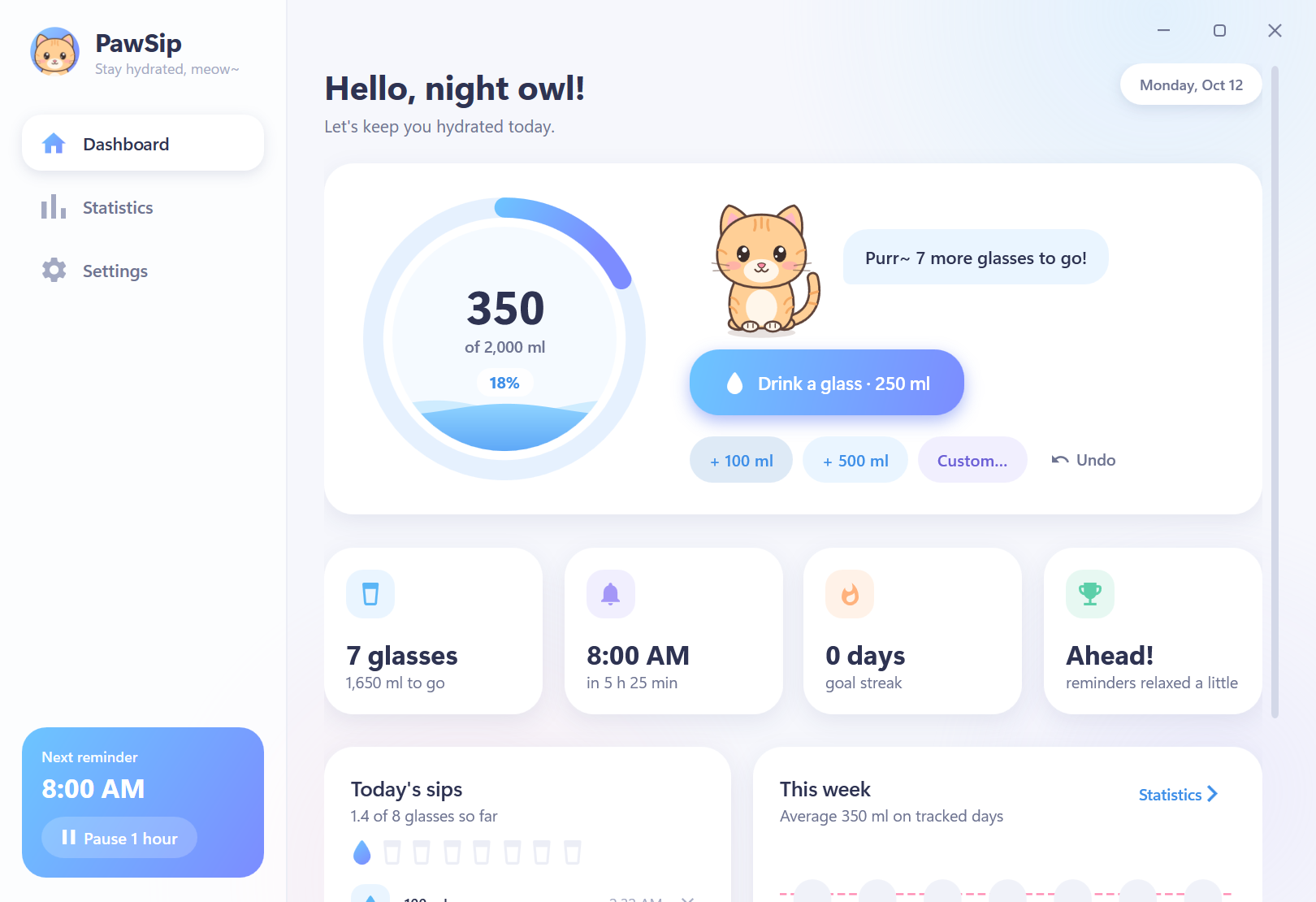
Behind the cat is a complete hydration tracker. You set a daily goal in glasses or milliliters, log drinks in one click, and see your day as a filling water ring. The goal resets at midnight and every day is kept, so there are weekly and monthly statistics and a hydration calendar. Everything stays on the PC: no account, no tracking. The only thing it fetches is a once-a-day update check, which you can turn off.
Expressive.
Never in the way.
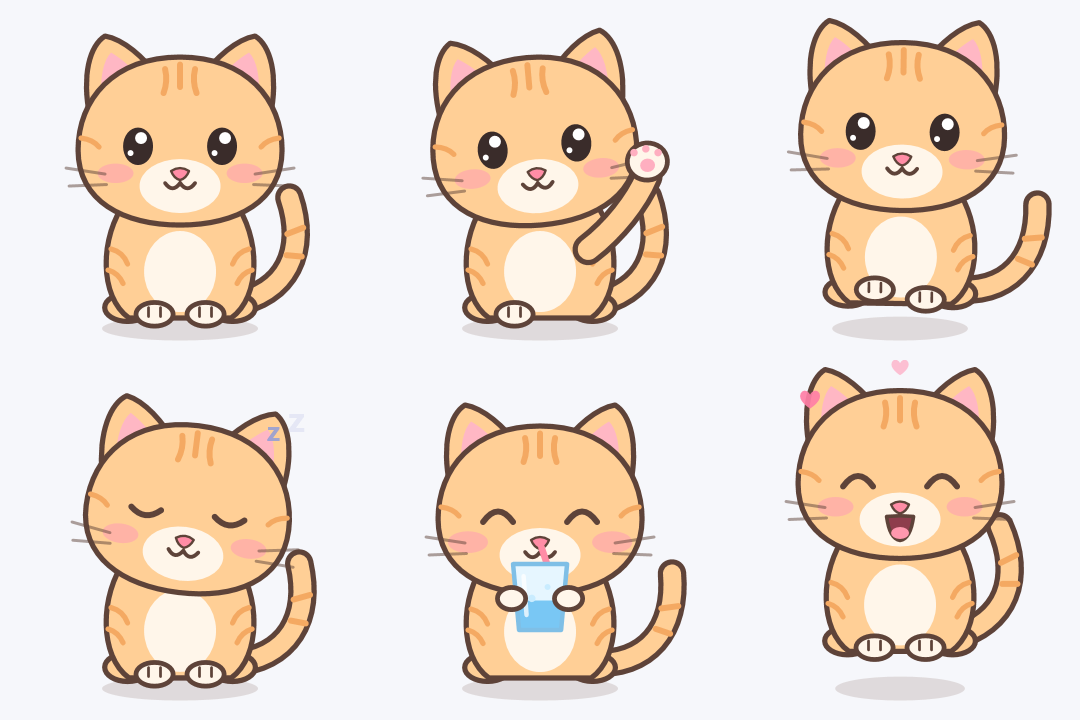
The cat is drawn entirely with vector shapes, so it stays crisp at any size and display scale. Every part has its own transform, which lets it blink, look around, twitch an ear, wave, walk in from the edge of the screen, nap with floating Zzz, sip water through a straw and celebrate with hearts.
On the desktop, the cat sits above a small water gauge. Hover it to log a glass, undo a mistake or open the dashboard. Right-click for “remind me in…”, the cat's size, and whether it stays on top of other windows. Drag it anywhere and it remembers the spot. Between reminders it naps, so it's charming without being distracting.
Follows the person.
Not the clock.
Most reminder apps run on a timetable. I wanted PawSip to run on presence: if I'm actually at the computer, the cat may remind me, whatever the hour. If I'm away, it waits. Every reminder goes through four simple questions.
The screen is on, the PC is unlocked, and the keyboard or mouse was used in the last five minutes. If not, the cat waits.
A game, video or presentation is fullscreen. The cat never interrupts it, and tries again once you leave fullscreen.
An overdue reminder arrives the moment you touch the mouse or keyboard again, with a “Welcome back!”.
Dismiss or ignore the cat without drinking and it returns after 15 minutes. Again and again, a little more insistent each time, until you have some water.
The interval adapts as well. PawSip compares your progress with where you'd expect to be in your day. Behind, and reminders come up to about a third sooner; ahead, they relax. Reach the goal and the cat rests until tomorrow. Remind me later lets you choose 5, 10, 15 or 30 minutes, or an hour.
The rules are deliberately simple, and each one can be adjusted in Settings. They encourage a habit; they aren't medical advice. How much water is right depends on the person.
Always there.
Barely noticeable.
A desktop companion runs all day, so its cost matters. The scheduler wakes once every 20 seconds for a cheap check, with no busy loops. The cat animates at a gentle frame rate, and only while it's on screen. When a window closes, PawSip hands unused memory back to Windows.
| State | Memory | CPU |
|---|---|---|
| Desktop cat on screen, main window closed | 66 MB | 0.5% average over 45 s |
| Tray only (desktop cat hidden) | 25 MB | Near zero |
| Windows 7 / 8.1 edition, just started | 18 MB | Not measured |
Presence comes from Windows itself. Display power notifications say whether the screen is on, session events say whether the PC is locked, and the last-input time says whether someone is there. Fullscreen detection uses the shell's own “busy” state plus a check of the window in front.
Even the meow is generated. It's synthesized in code from harmonics shaped by moving vowel resonances, “ee” to “ah” to “oo”, so there are no audio files to ship. There's also a chime, a water drop, or silence.
One codebase builds two targets: .NET 10 for Windows 10 and 11, published self-contained for x64, ARM64 and 32-bit, and .NET Framework 4.8 for Windows 7 SP1 and 8.1, which becomes a 2.6 MB installer.
Free.
For your Windows.
PawSip is free. The box below suggests the right installer for the PC you're on; the full list follows. There's also a download page you can share.
| Windows | Best for | Size | Installer |
|---|---|---|---|
| Windows 10 & 11 · 64-bit | Intel or AMD processor. Most PCs. Self-contained. Nothing else to install. | 50.9 MB | Download |
| Windows 11 & 10 on ARM | Snapdragon laptops, Surface Pro X and other ARM PCs. Self-contained. Nothing else to install. | 44.7 MB | Download |
| Windows 10 · 32-bit | Older PCs running a 32-bit installation of Windows 10. Self-contained. Nothing else to install. | 46.3 MB | Download |
| Windows 7 SP1 & 8.1 | Older PCs, 32- or 64-bit. A small 2.6 MB download. Uses Microsoft .NET Framework 4.8. Setup tells you if it is missing. | 2.6 MB | Download |
SHA-256 checksums
- PawSip-Setup-1.0.2-x64.exe
e1c19dbc46b2d7d1daf834ef02809fddba9db734765c8734e881a6045bf2a7ab - PawSip-Setup-1.0.2-arm64.exe
be9f71f81089f409730cc2181a777b4992fa3704bb6c1b7acd6d7d60c597a09f - PawSip-Setup-1.0.2-x86.exe
cad7716239c96e3c2216a6f80aab747d360a48bca17d15fdddc7f3188e9e397c - PawSip-Setup-1.0.2-win7-8.exe
46b406b2142442ba47a0c247b401a720d1870b14c97800b86fc0dd3f56212c52
Which one do I need?
Open Settings › System › About on Windows 10 or 11, or Control Panel › System on Windows 7 and 8.1. It shows your Windows edition and system type. Most PCs need the first installer. Windows 8 needs the free update to 8.1 first. Windows XP and Vista aren't supported.
Installing
Setup installs for your account only, with no administrator prompt. Keep Start PawSip with Windows ticked so the cat is there every day. The installers aren't code-signed yet, so Windows SmartScreen may show “Windows protected your PC”. Choose More info, then Run anyway. Compare the SHA-256 checksum first if you'd like to be sure the file is the one I published.
Installing a newer version, or another edition, replaces the one you have and keeps your history. From 1.0.2, PawSip does that itself: shortly after it starts, and then at most once a day, it reads a small file on this site (https://www.nomanshafiq.com/updates/pawsip.json) and, if there's a newer version, offers it on the dashboard, or with a tray notification that waits until you're out of fullscreen. Update now downloads the installer for your edition, checks its SHA-256 checksum, installs it and puts the cat back in the tray; turn the check off in Settings › Updates. To remove PawSip, uninstall it from Settings › Apps. Your history stays in %APPDATA%\PawSip in case you come back.
I tested the 64-bit, 32-bit and Windows 7/8.1 editions on my Windows 11 PC, including installing and uninstalling. The ARM64 edition is built natively for ARM, but I haven't run it on ARM hardware yet, and I haven't had a Windows 7 machine to test on.
A small app.
Room to grow.
Next on my list: code-signing, so SmartScreen stays quiet; proper release pages with notes for each version; testing the ARM64 and Windows 7 builds on real hardware; and a few more companions for people who aren't cat people.
PawSip started as a fix for my own bad habit. The interesting part was making something that sits on screen all day and still feels light, polite and a little bit delightful. If it helps you drink a few more glasses, the cat has done its job.