Trove:
open any archive.
Make zips in a click.
A free Windows archive manager with a Windows 11 look, on the 7-Zip engine.
It opens ZIP, 7Z, RAR, TAR, ISO and many more, makes ZIP and 7Z archives with AES-256 passwords, and blocks anything in an archive that tries to write outside the folder you chose.
Windows 7 SP1, 8.1, 10 & 11 · x64, ARM64 and 32-bit
Round trips, passwords, split archives, zip slip and RAR samples, on .NET 10 and .NET Framework 4.8
The official, unmodified 7z.dll, for x64, x86 and ARM64
Windows opens a ZIP on its own. Then someone sends a RAR, a 7Z or a TAR.GZ, and you're off looking for a tool, often one that hasn't changed its look in many years.
Trove is the archive manager I wanted on my own PC: it opens nearly any archive, lets you look inside it like a folder in File Explorer, and turns the most common job, put these files in a zip, into one click. It follows Windows 11's look, including light and dark mode and your accent colour.
It doesn't reinvent compression. Underneath is the official 7z.dll from 7-Zip 26.04, unmodified: the engine 7-Zip itself runs on. Trove is the app around it, with the safety checks I think an archive tool should have.
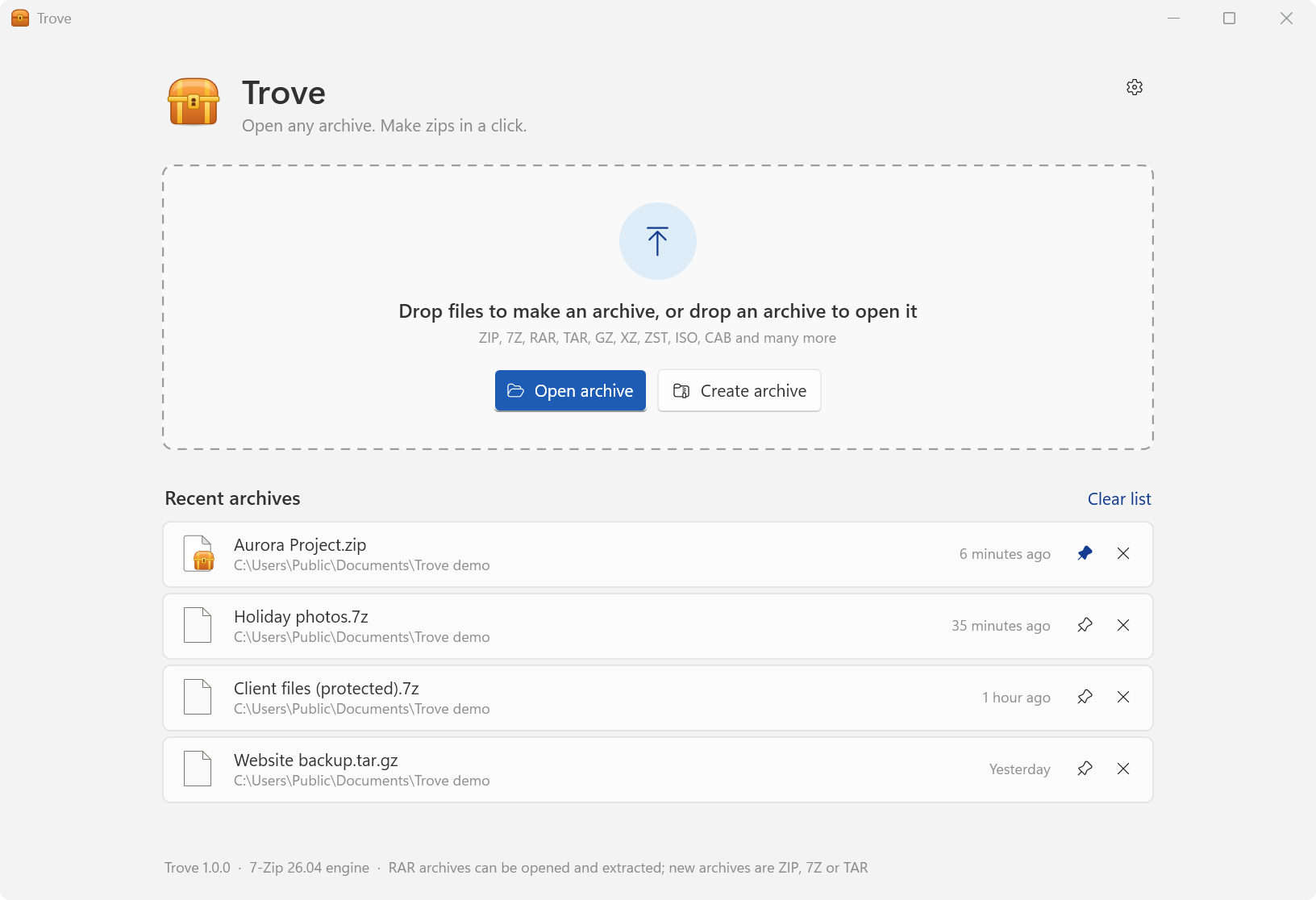
Open it.
Browse it like a folder.
Trove opens ZIP (including AES-encrypted ones), 7Z, RAR and RAR5 (including encrypted and multi-part archives), TAR, GZ and TGZ, BZ2, XZ and TXZ, ZST, LZMA, ISO, UDF, CAB, WIM, ARJ, LZH, CPIO, RPM, DEB, DMG, XAR, VHD and VHDX, MSI, and many more of the formats the 7-Zip engine reads. Split archives (.001, .002, …) are joined automatically, and self-extracting .exe archives open like any other.
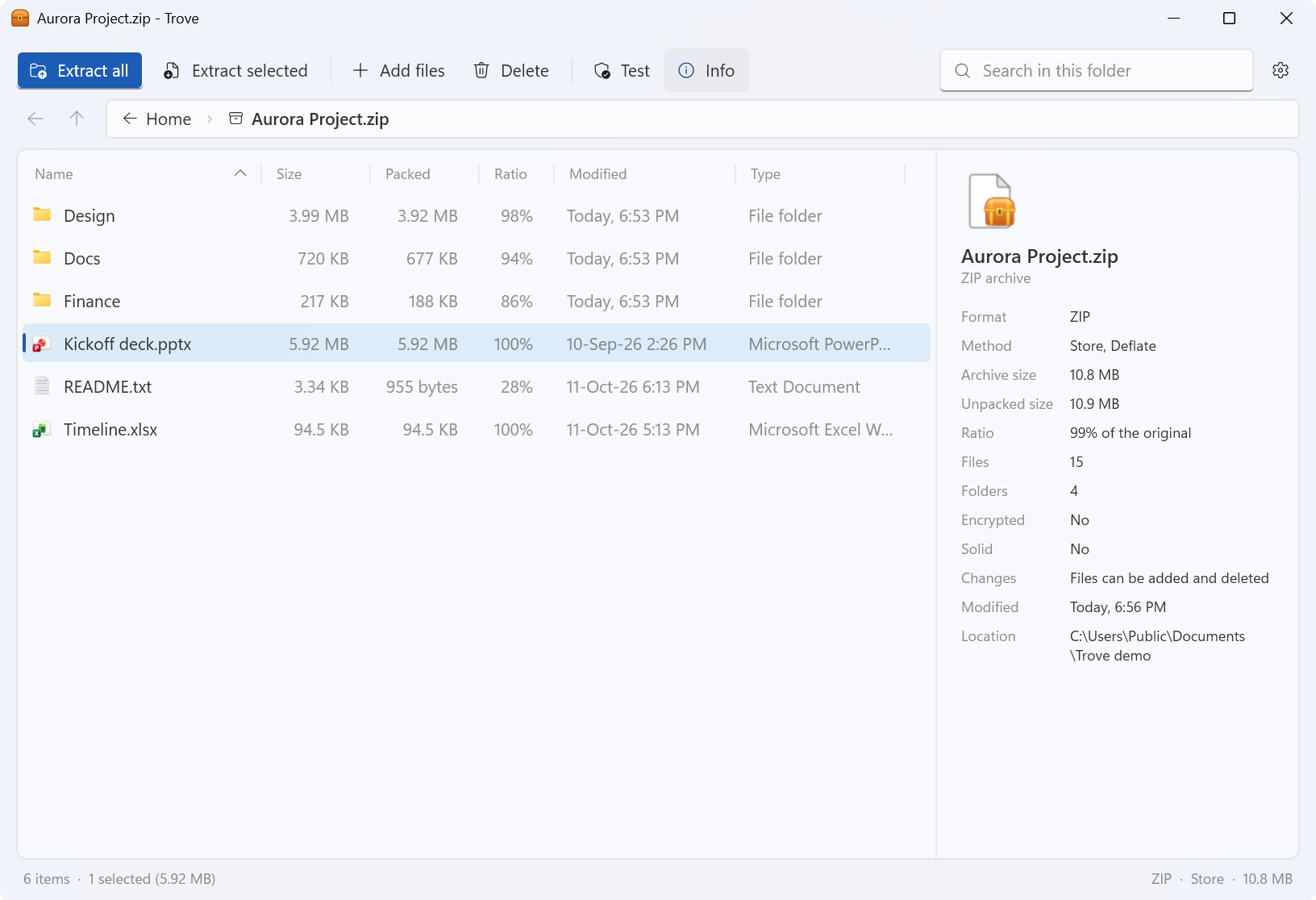
Inside, it works like File Explorer: folders, a breadcrumb, Back and Up (Alt+Left and Backspace), Windows' own file icons and type names, sizes, packed sizes and ratios, sorting and multi-select. The search box looks through the current folder and every folder inside it. The Info pane shows the format, method, sizes, ratio, whether the archive is encrypted or solid, how many parts it has, and its comment.
Double-click a file and Trove extracts it to a temporary folder and opens it with its usual app. If it's a program or a script, Trove asks first: “This is a program or script. Only run it if you trust where the archive came from.” You can drag files out to any folder in Explorer, or drag files in to add them. Add files and Delete work inside ZIP, 7Z and TAR archives, and Test checks every file's data.
Make a zip.
In one click.
Drop files on Trove's start page, use Create archive, or right-click files in Explorer and choose Compress to ZIP file. Trove makes ZIP, 7Z, TAR, TAR.GZ and TAR.XZ archives.
Trove can open and extract RAR archives, but it can't create them. RAR is a proprietary format, and the licence of the code that decodes it forbids using it to build a RAR-compatible archiver. For new archives, ZIP opens everywhere and 7Z is usually smaller.
| Level | 7-Zip level |
|---|---|
| Store (no compression) | 0 |
| Fastest | 1 |
| Balanced | 5 |
| Smallest | 9 |
The create dialog keeps the choices you're likely to need and nothing else: name and folder, format, one of four compression levels, splitting, a password, and Solid archive for 7Z, which is on by default (files are compressed together: smaller, but slower to change later). Delete the original files after archiving moves them to the Recycle Bin, and only once the archive was created completely. An existing archive with the same name is never replaced without asking.
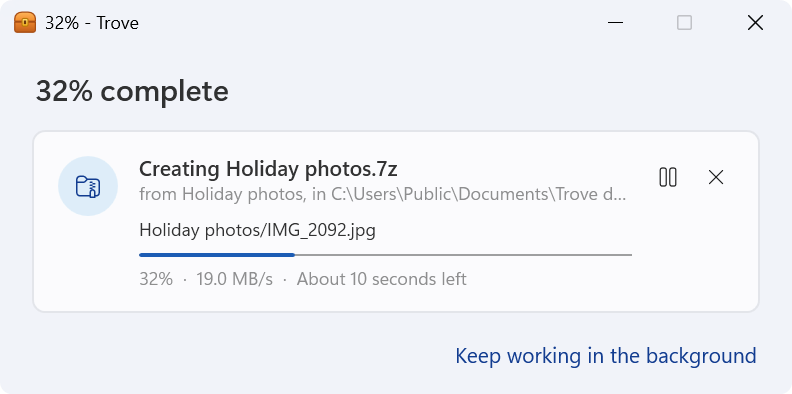
The work runs in the background. The progress window shows each task's speed and time left, and its progress on the taskbar button. You can pause, resume or cancel, and the taskbar button flashes when everything is done.
Lock it.
Split it.
Tick Protect with a password (AES-256) and both ZIP and 7Z archives are encrypted with AES-256. Trove never uses ZipCrypto, the old and weak ZIP encryption. For 7Z there's Hide file names too: without the password, nobody can even see which files are inside. ZIP passwords can only use English letters, digits, spaces and common symbols, because that is what 7-Zip accepts for ZIP; Trove says so and suggests 7Z for anything else.
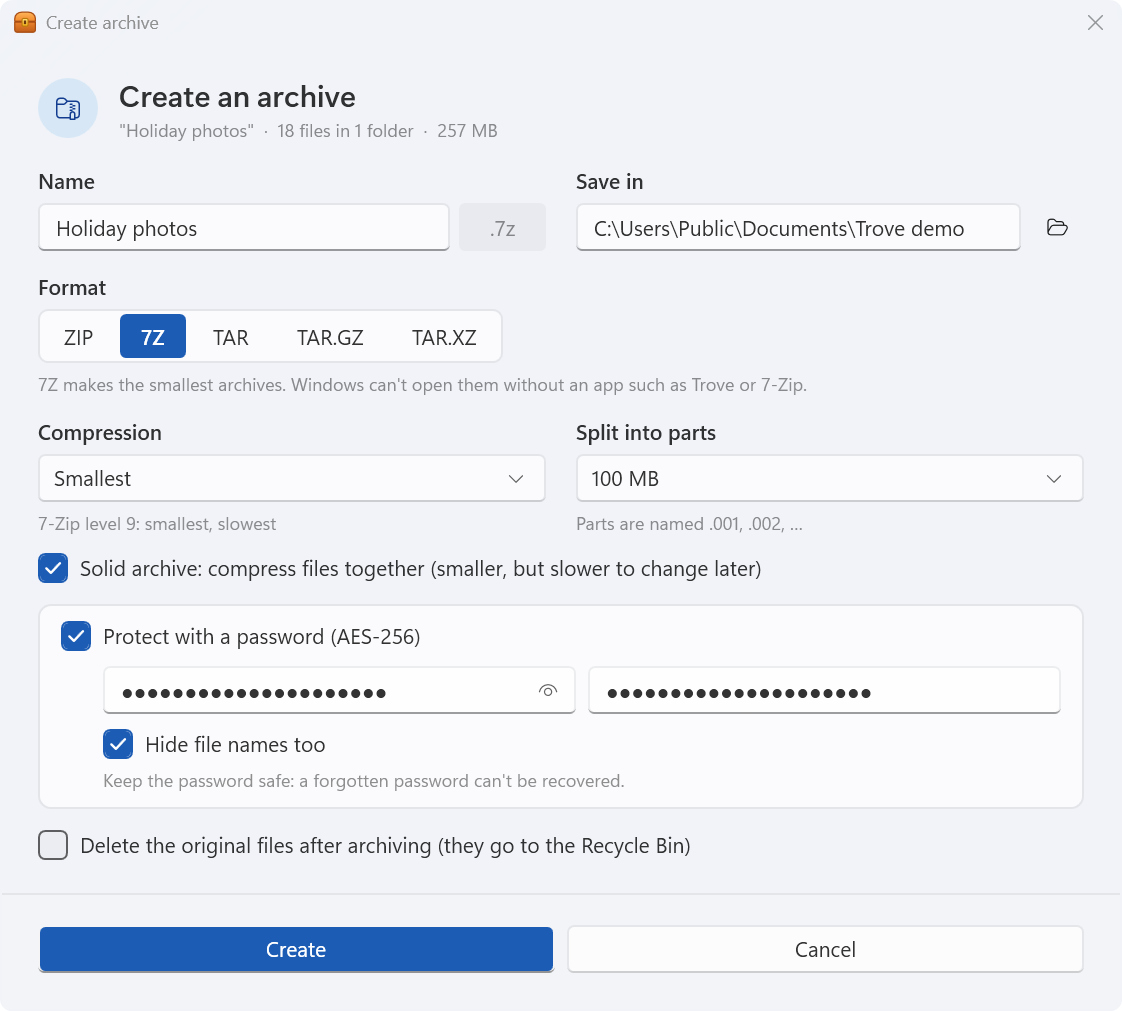
Split into parts offers 100 MB, 700 MB (CD), 4 GB (FAT32 USB drive) or a custom size. The parts are named .001, .002 and so on, and opening the first one opens the whole archive.
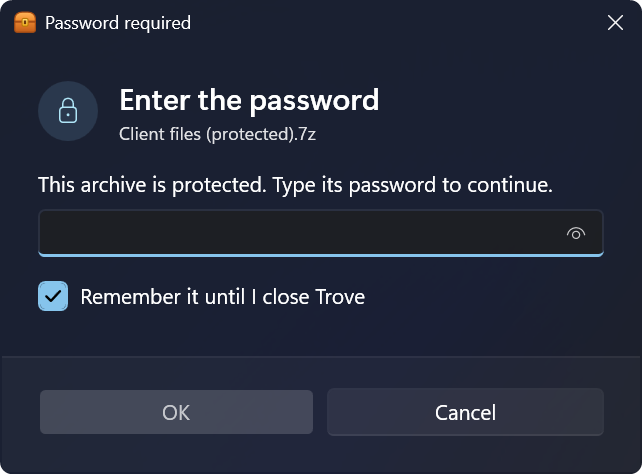
When an archive needs a password, Trove asks for it with a show/hide button and a friendly retry if it's wrong. Remember it until I close Trove keeps it in memory only; nothing is saved.
Nothing escapes
the folder you chose.
An archive is a list of names with data attached, and the names can lie. Take an entry called ../../AppData/Roaming/Microsoft/Windows/Start Menu/Programs/Startup/updater.bat. Extract it into a folder in Downloads with a careless tool, and the two “..” climb back up to your user folder; the rest of the name leads into your Startup folder, where Windows runs the file the next time you sign in. That trick is called zip slip, and Trove blocks it.
Names with “..”, absolute paths such as /Users/…, drive letters such as C:\Windows\…, and parts made only of dots and spaces are blocked, and each one is listed in the result.
If a folder in the destination is a junction or symbolic link, nothing is written through it. Trove never creates symbolic links, hard links or alternate data streams from an archive.
Reserved names such as CON or NUL get a “_” in front, characters like “:” are replaced, and paths longer than 260 characters still work.
Every file is written to a temporary “.part” file next to its target and moved into place only when 7-Zip reports that its data checked out. A wrong password or a damaged archive never leaves broken files behind or replaces a good one.
Never overwritten silently: Replace, Keep both or Skip, with “Do this for every conflict”.
If the archive came from the internet, the extracted files keep Windows’ “downloaded” mark, so SmartScreen and Office’s Protected View still warn about them. On by default.
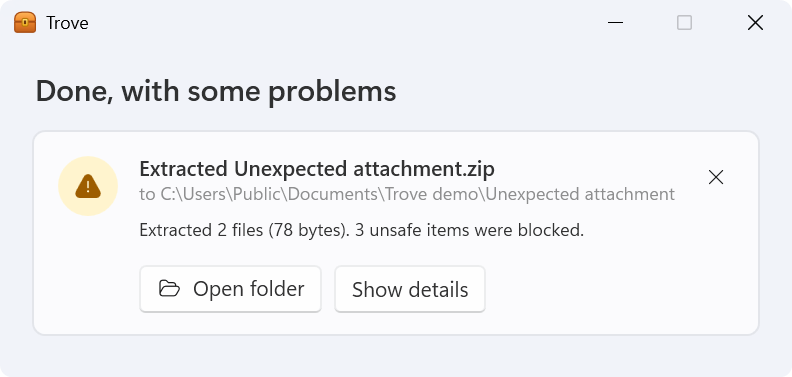
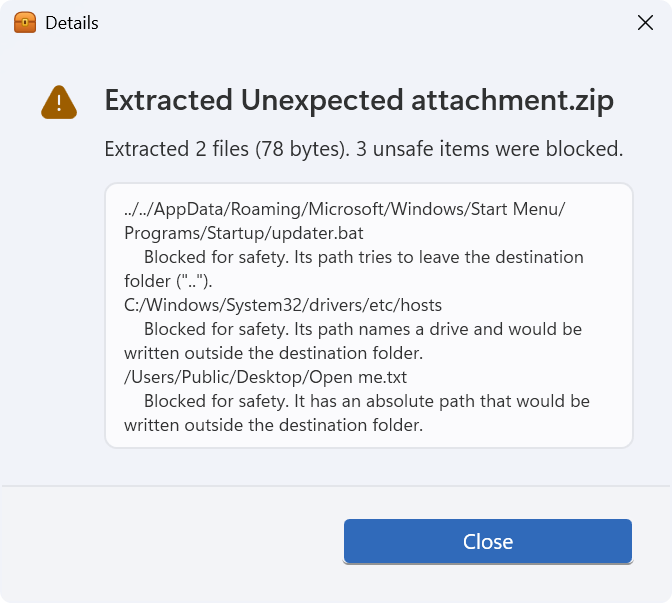
Blocked entries never stop the rest of the archive: the ordinary files come out, and the result card turns amber with a summary. Nothing outside the destination folder is touched.
Right-click.
Done.
Setup can add a Trove submenu to File Explorer's right-click menu. Select several files and choose Compress to ZIP file, and they all go into one archive, named after the file or, for several, after their folder. Extract to a new folder doesn't nest twice: if everything in the archive is already inside one folder, that folder is what you get.
On Windows 11, these commands are under Show more options (or Shift+F10). The new compact menu only accepts packaged shell extensions, which Trove doesn't have yet. For the same reason the labels can't include the file's name.
Explorer starts one copy of the program for every selected file, so ten files would mean ten processes. The first Trove process to start becomes the leader; the others hand over their file through a named pipe and exit before any window code loads. Once nobody new has arrived for 350 milliseconds, the leader makes one archive with one progress window.
Setup can also add Trove to Open with for 30 archive types and list it under Settings › Apps › Default apps. To make it the default, right-click an archive, choose Open with › Choose another app › Trove and tick Always.
Built on 7-Zip.
Shaped like Windows 11.
Trove is written in C# with WPF. Archives are read and written by 7z.dll from 7-Zip 26.04, copied unmodified from the official releases for x64, x86 and ARM64. There's no wrapper library in between: I wrote the COM interop from 7-Zip's own headers (IInArchive, IOutArchive, the callbacks and PROPVARIANT), so Trove talks to the engine directly.
A few details took the most care. 7-Zip's objects can't cross COM apartments, so they never run on the UI thread. PROPVARIANT is 16 bytes in a 32-bit process and 24 in a 64-bit one, and getting that wrong only shows up in a 32-bit process. The ZIP writer keeps reading a file on its own threads after it reports that file finished, so Trove doesn't close a file the moment 7-Zip says it's done. Compressed tars are handled in two steps, through a temporary .tar.
Writes are careful by design. New archives are written under a temporary name and renamed at the end; adding or deleting files writes a new archive next to the old one and replaces it only on success. Extracted files go through temporary .part files, and the zone information of a downloaded archive (Windows' “Mark of the Web”) is copied to the files that come out of it.
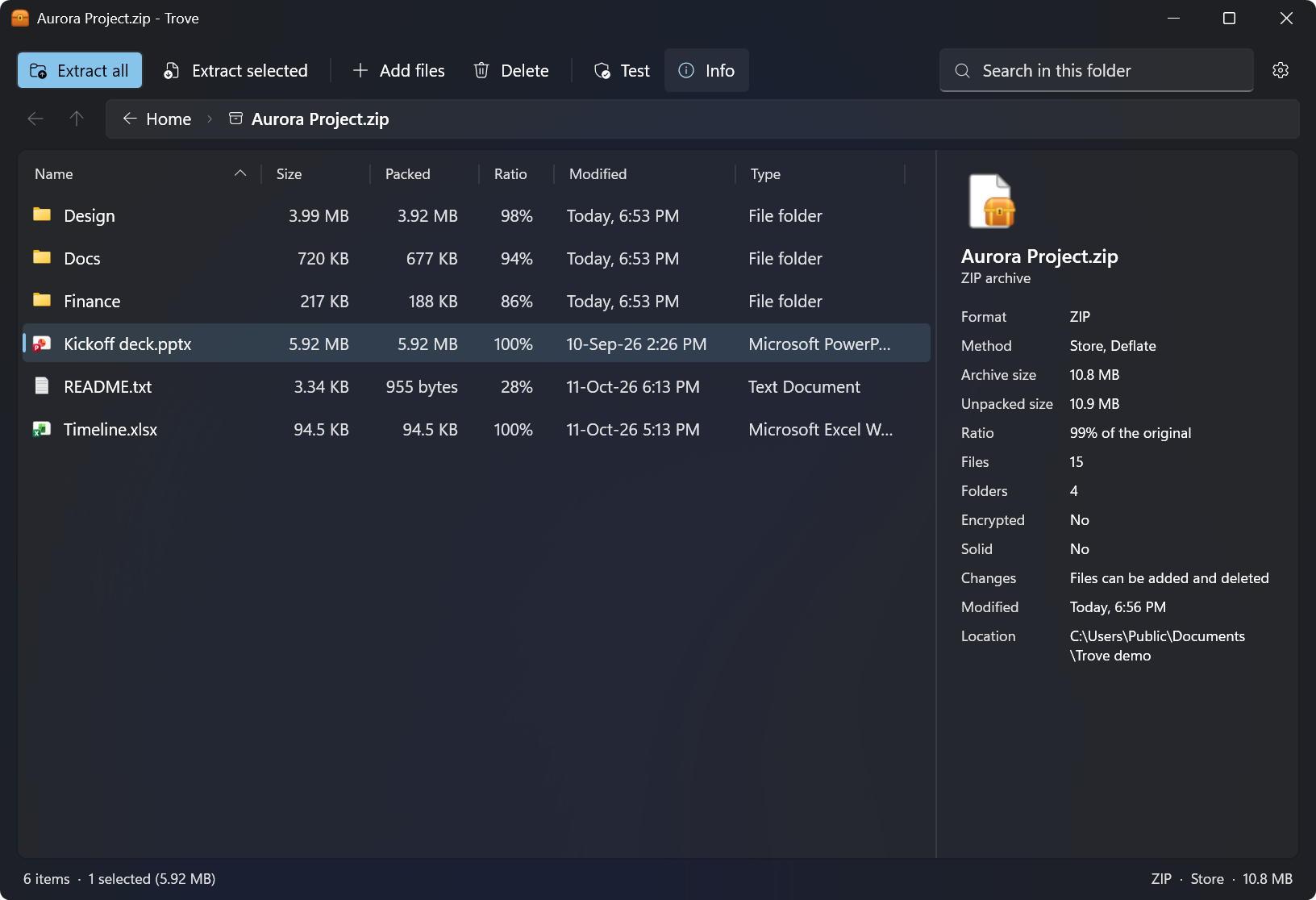
The look is Windows 11's Fluent design: Mica on Windows 11 22H2 and later, light and dark themes that switch live with Windows, your accent colour, Segoe UI Variable and Microsoft's Fluent System Icons, drawn as vectors so they work on Windows 7 too. Settings › Appearance can also fix the theme to Light or Dark.
One codebase builds two targets: .NET 10 for Windows 10 and 11, published self-contained for x64, ARM64 and 32-bit, each with the 7-Zip engine for its processor; and .NET Framework 4.8 for Windows 7 SP1 and 8.1, one app that carries both the 32- and 64-bit engines, of which setup installs the one that matches Windows. 85 engine tests (round trips, passwords, split archives, zip slip, damaged archives, RAR and RAR5 samples, add and delete, conflicts, cancel and pause) run against both targets.
Trove uses the 7-Zip engine (7z.dll) by Igor Pavlov under the GNU LGPL, with the unRAR licence restriction for the RAR decoder, and Microsoft's Fluent UI System Icons under the MIT licence. Details are in the third-party notices. Trove is an independent project, not affiliated with or endorsed by 7-Zip, Igor Pavlov or RARLAB.
The short version.
In 74 seconds.
If you'd rather watch than read, here is the launch video. English captions are on by default; turn them off from the video's controls.
Free.
For every Windows.
Trove is free. The box below suggests the right installer for the PC you're on; the full list follows. There's also a download page you can share.
| Windows | Best for | Size | Installer |
|---|---|---|---|
| Windows 10 & 11 · 64-bit | Intel or AMD processor. Most PCs. Self-contained. Nothing else to install. | 45.4 MB | Download |
| Windows 11 & 10 on ARM | Snapdragon laptops, Surface Pro X and other ARM PCs. Self-contained. Nothing else to install. | 39.9 MB | Download |
| Windows 10 · 32-bit | Older PCs running a 32-bit installation of Windows 10. Self-contained. Nothing else to install. | 41.4 MB | Download |
| Windows 7 SP1 & 8.1 | Older PCs, 32- or 64-bit. Uses Microsoft .NET Framework 4.8 (setup tells you if it is missing). Installs the 32- or 64-bit 7-Zip engine that matches Windows. | 3.8 MB | Download |
SHA-256 checksums
- Trove-Setup-1.0.0-x64.exe
d76bff1b3d29131cfce2b2586cc46ed8502c868fdd73cbfc55daf90577356482 - Trove-Setup-1.0.0-arm64.exe
e6b8cccd880aae217ed2581a79c67c19b002ef59c53a7af004b56787652ac84c - Trove-Setup-1.0.0-x86.exe
b2b7abae990cffb1e5508d5c94cd97354da2e05b999f11a6acf0dce68f9c8c3a - Trove-Setup-1.0.0-win7-8.exe
d8e4126ae0fc46fa6c05b75e59b63333cbf36a19ab81ba6db7128c7cfac03ea0
Which one do I need?
Open Settings › System › About on Windows 10 or 11, or Control Panel › System on Windows 7 and 8.1. It shows your Windows edition and system type. Most PCs need the first installer. Windows 8 needs the free update to 8.1 first. Windows XP and Vista aren't supported.
Installing
Setup first asks who it's for: all users, the default, which installs to Program Files and needs administrator permission; or only you, which needs no administrator rights. Then pick the extras: Trove in Open with for archives and the right-click menu (both ticked), and a desktop shortcut. With a per-user installation, Settings › Right-click menu in File Explorer turns the menu on and off later.
The installers aren't code-signed yet, so Windows SmartScreen may show “Windows protected your PC”. Choose More info, then Run anyway. Compare the SHA-256 checksum first if you'd like to be sure the file is the one I published: Get-FileHash in PowerShell shows it, or certutil -hashfile <file> SHA256 on Windows 7.
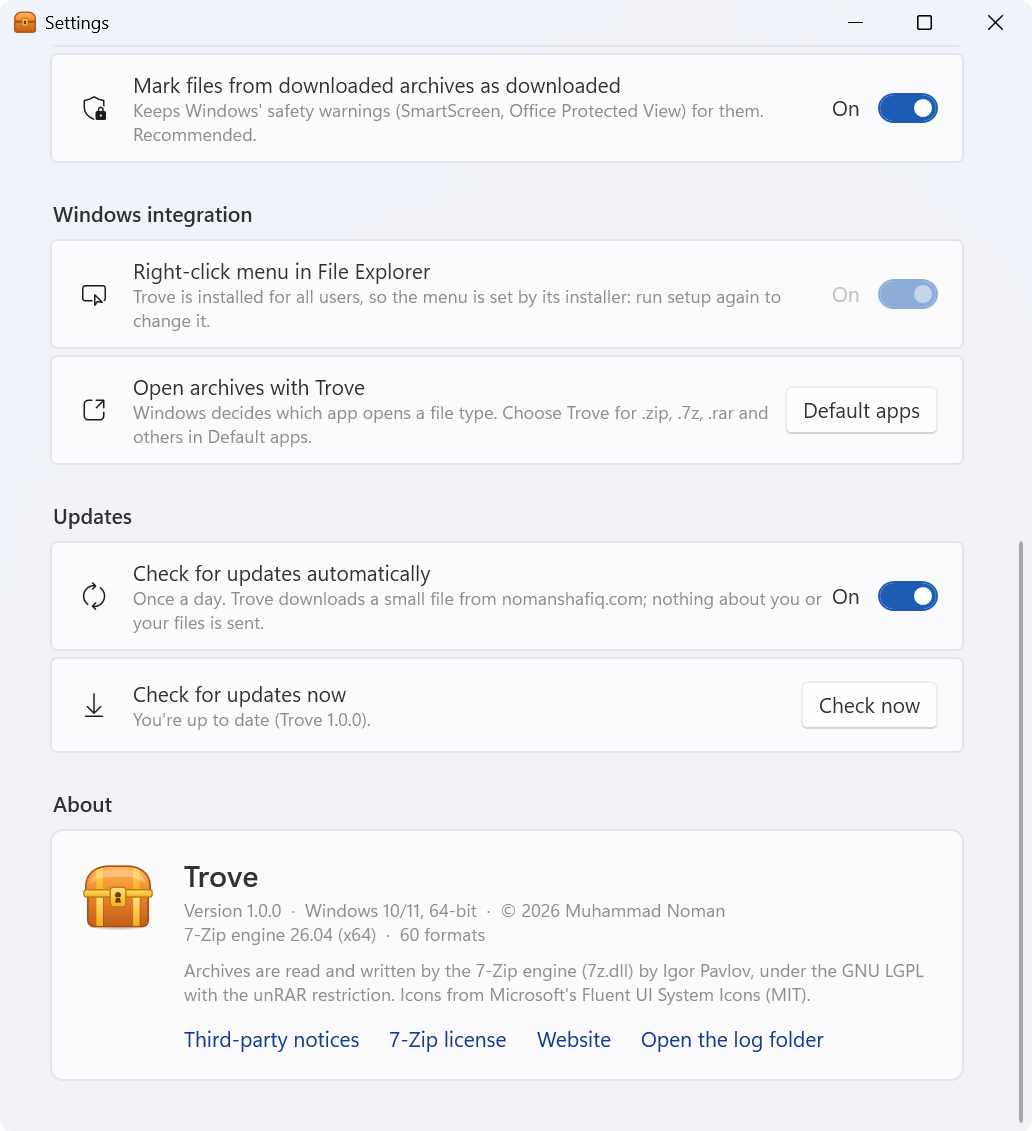
Trove keeps itself up to date. About 10 seconds after it starts, and then at most once a day, it reads a small file on this site (https://www.nomanshafiq.com/updates/trove.json). Apart from downloading an update you asked for, that is the only thing Trove does on the network, and the request carries nothing about you or your files. If there's a newer version, a bar in the window offers Update now, Later or Skip this version. Update now downloads the installer for your edition, checks its size and SHA-256 checksum (a mismatch is deleted, never run), installs it silently and starts Trove again; if Trove is installed for all users, Windows asks for permission first. Turn the check off in Settings › Updates.
Installing a newer version, or another edition, replaces the one you have and keeps your settings. To remove Trove, uninstall it from Settings › Apps; that removes its files, menu entries and file-type registrations. Your settings and recent archives stay in %APPDATA%\Trove in case you come back.
What I tested: the 85 engine tests pass on .NET 10 (64-bit) and on .NET Framework 4.8 as a 64- and a 32-bit process. I ran the 64-bit, 32-bit and Windows 7/8.1 (.NET Framework) builds on my Windows 11 PC, checked the right-click menu and multi-file selection, and installed and uninstalled for one user cleanly. Not tested yet: the ARM64 edition on ARM hardware, any build on an actual Windows 7 or 8.1 machine, and the all-users installation. Dragging files in and out of an archive has only been code-reviewed.
A good start.
More to unpack.
Next on my list: a packaged shell extension, so Trove's commands appear in Windows 11's compact right-click menu and can show the file's name, like “Extract to Holiday photos”; code-signing, so SmartScreen stays quiet; Trove in more languages than English; and testing the ARM64 and Windows 7/8.1 builds on real hardware.
Archives are one of those everyday chores nobody thinks about until a tool gets in the way. Trove's job is to stay out of it: open what you're sent, make what you need, and never write a file where it shouldn't.
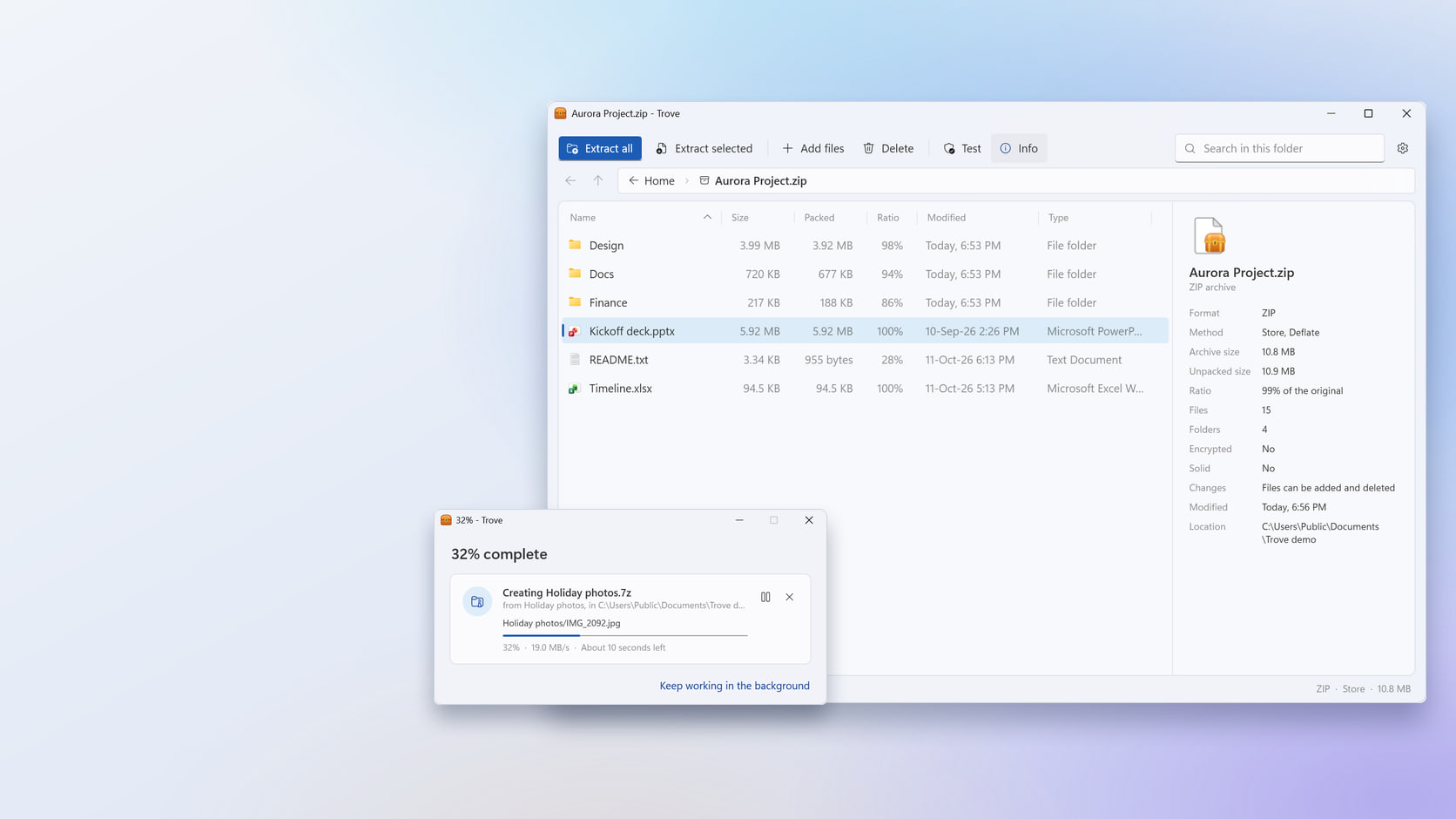
Every still image of Trove on this page is a real screenshot of version 1.0.0 (x64) on Windows 11, captured from Trove's own windows with demo files. The cover places two of them on a gradient background. The launch video is different: its app shots recreate Trove's interface from its source.