Download Stagecraft
for Windows.
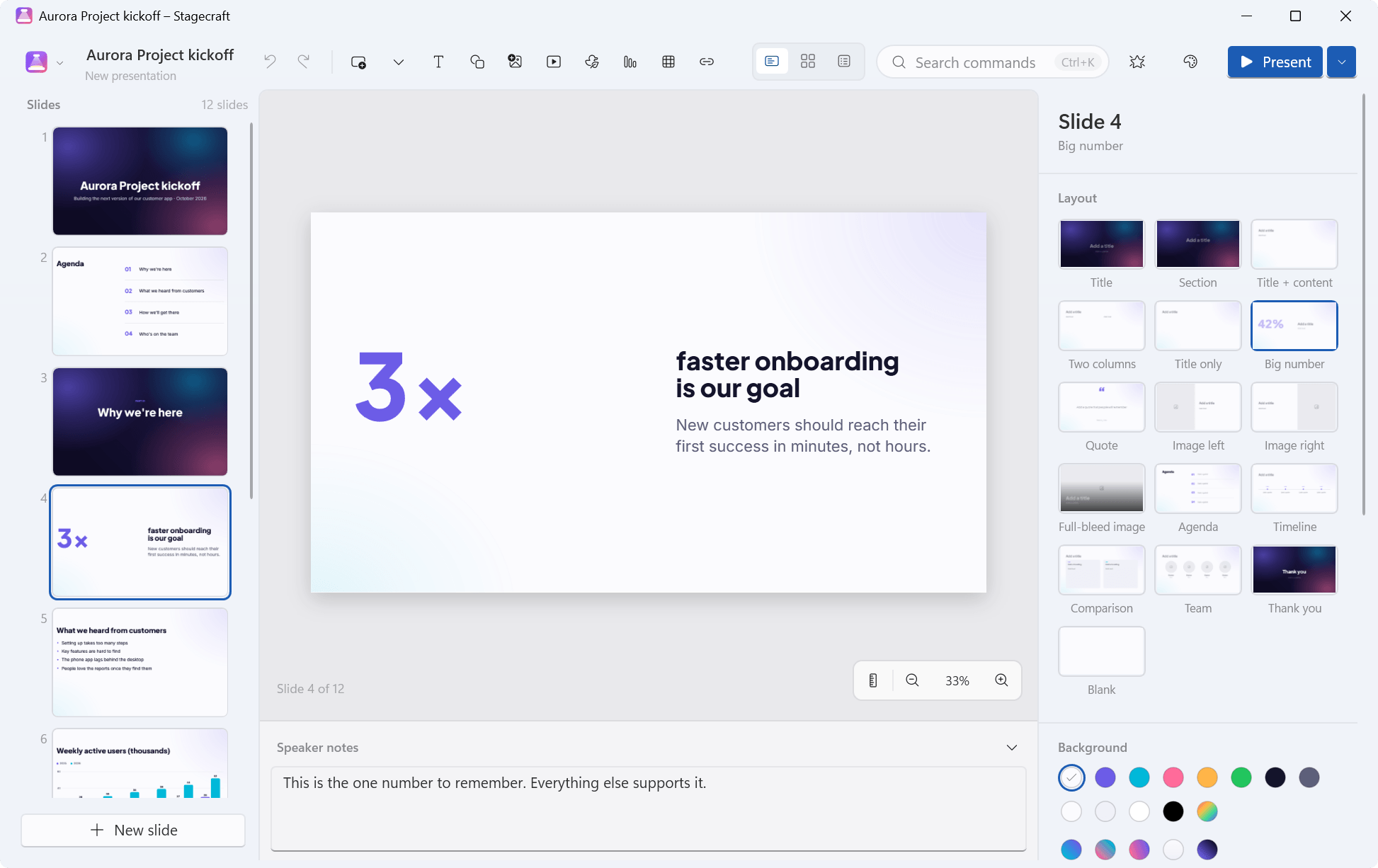
A free presentation app for Windows with a Windows 11 look and no ribbon. Pick a theme, type your talk, and smart layouts, text that fits and Morph transitions make every slide look designed. Add animations, links, video and sound, present with a presenter view, and export PDF, pictures or PowerPoint.
VERSION 1.1.0RELEASED FREE
Other Windows versions and checksumsWindows 7 SP1, 8.1, 10 & 11 · x64, ARM64 and 32-bit
Files, PowerPoint, rendering, animation, links, media and Morph, on .NET 10 and .NET Framework 4.8
3 colour variants each, 16 smart layouts and 8 bundled font families
Every installer.
Pick yours.
| Windows | Best for | Size | Installer |
|---|---|---|---|
| Windows 10 & 11 · 64-bit | Intel or AMD processor. Most PCs. Self-contained. Nothing else to install. | 48.6 MB | Download |
| Windows 11 & 10 on ARM | Snapdragon laptops, Surface Pro X and other ARM PCs. Self-contained. Nothing else to install. | 43.1 MB | Download |
| Windows 10 · 32-bit | Older PCs running a 32-bit installation of Windows 10. Self-contained. Nothing else to install. | 44.6 MB | Download |
| Windows 7 SP1 & 8.1 | Older PCs, 32- or 64-bit. Uses Microsoft .NET Framework 4.8 (setup tells you if it is missing). | 6.6 MB | Download |
SHA-256 checksums
- Stagecraft-Setup-1.1.0-x64.exe
d2de9ca98c92bb56574c990d06d19eea25e47dbaba57c2b06db39ca2f6840f68 - Stagecraft-Setup-1.1.0-arm64.exe
4031591a4543569c94b1f1ca4bfc8f6b76f3de0a6c43b6483d820782470a66d7 - Stagecraft-Setup-1.1.0-x86.exe
96dbe45e4da0fd153b439e27d097bb924e43cf4d068c5148f0d11a4707f9d986 - Stagecraft-Setup-1.1.0-win7-8.exe
340d65a3f8a0af6d20ff90503648ab4168c65cc9974c42ef9d7e040f8805aff3
Which one do I need?
Open Settings › System › About on Windows 10 or 11, or Control Panel › System on Windows 7 and 8.1. It shows your Windows edition and system type. Most PCs need the first installer. Windows 8 needs the free update to 8.1 first. Windows XP and Vista aren't supported.
What's new
in 1.1.
Stagecraft 1.1 adds animations, links, and video and sound, plus a set of everyday editing tools. If you have 1.0, it offers the update by itself (unless you switched the update check off); your presentations open with their builds turned into the same animations.
- 01
Animations
12 entrance, 8 emphasis and 12 exit effects, plus motion paths you can draw and reshape on the slide. On click, With previous or After previous, with duration, delay, repeat, rewind and easing; text all at once or by paragraph, word or letter; triggers. An animation pane with click groups, a timeline, drag-to-reorder and Play from here, a gallery that previews each effect on the slide, and the animation painter (Alt+Shift+C).
- 02
Links
On text, shapes, pictures, icons and action buttons, to web pages, e-mail, slides or files (a file opens only after you confirm; programs and scripts never do). Ctrl+Shift+K adds one, Ctrl+click follows it in the editor, and the show gives a hand pointer and a ScreenTip. Links stay clickable in PDF exports.
- 03
Video and sound
Insert or drop video and sound, played by Windows’ own media support. Stored in the presentation, or linked for files over 200 MB. Poster frame, trim, start options, full screen, loop, volume, fades, hide when not playing, sound across slides, and play, pause and stop in the animation order. Online videos become cards that open in the browser.
- 04
More editing
Header and footer, find and replace (Ctrl+F, Ctrl+H, speaker notes included), spell check as you type, crop with handles or to a circle or rounded rectangle, opacity, borders and shadow presets, Replace picture, your own gradients, text shadows, rulers, gridlines, guides and snap to grid.
- 05
Save automatically
A presentation that already has a file is saved a few seconds after you stop editing (on by default; Settings can switch it off). Recovery copies of unsaved work are still kept separately.
- 06
PowerPoint, both ways
Export writes animations, links and slide jumps, video and sound with their trim and fades, and the footer; import reads them back, and a summary lists anything left out or approximated. Presentations from Stagecraft 1.0 open with their builds turned into the same animations.
- 07
Fixed
At high display scaling, the window no longer opens taller than the screen the first time Stagecraft starts.
What it
runs on.
- Windows 10 & 11
- x64 or ARM64, plus 32-bit Windows 10. Self-contained: nothing else to install.
- Windows 7 SP1 & 8.1
- 32- or 64-bit. Uses Microsoft .NET Framework 4.8. If it’s missing, setup tells you and offers to open Microsoft’s download page.
- Windows 8
- Needs the free update to Windows 8.1 first.
- Windows XP & Vista
- Not supported. Stagecraft needs Windows 7 Service Pack 1 or newer.
- Video and sound
- Played by Windows’ own media support, so nothing extra is installed. MP4 with H.264 / AAC is the safest choice. Windows “N” editions need Microsoft’s Media Feature Pack first.
- Installation
- For all users (the default; needs administrator permission) or only for you (no administrator rights needed).
What I tested: the 135 engine tests pass on .NET 10 and on .NET Framework 4.8; I ran the 133-command smoke run on the 64-bit, 32-bit and Windows 7/8.1 (.NET Framework 4.8) builds on my Windows 11 PC, and played MP4 (H.264 / AAC), MP3, M4A and WAV files. Not tested yet: a slide show in real full screen or on a real second display (both views were tested in the windowed test mode), dragging and typing with a real mouse and keyboard (the snapping maths and the commands are tested), the ARM64 edition on ARM64 hardware, any build on real Windows 7 or 8.1 PCs, or on 32-bit Windows 10 (those editions ran on 64-bit Windows 11), MOV, WMV and WMA files, and video and sound on Windows N editions, the 1.1 installers themselves (the 1.0 installers installed and uninstalled cleanly for one user, and the 1.1 setup script differs only in its version number) and screen readers.
Slides that look designed.
Without the effort.
- 01
Beautiful by default
10 themes (Aurora, Editorial, Midnight, Pastel, Corporate, Mono, Gradient, Swiss, Botanical and Slate), each with 3 colour variants and its own typography, backgrounds and decorations. Switching theme re-lays every slide and keeps your words.
- 02
Smart layouts
16 of them, from Title and Big number to Timeline, Comparison and Team. Change a slide’s layout at any time; its title, text and pictures move along.
- 03
Text that fits, things that line up
Long text in a layout’s boxes shrinks to fit (Shrink text to fit can be switched per box), and titles wrap into balanced lines. Smart guides snap to edges, centres, margins and equal spacing, Tidy up (Ctrl+Alt+T) makes a neat row, column or grid, and rulers, gridlines and guides help with exact work.
- 04
No ribbon
A slim command bar, the slide rail, the canvas and a properties panel that shows only what applies. Everything else is in the command palette: press Ctrl+K and type.
- 05
Charts, tables, icons and pictures
Bar, line, pie and donut charts from a small data grid (paste rows from a spreadsheet), tables with a header row and banding, 1,112 Fluent UI System Icons in the theme’s colours, shapes and connectors, and pictures you can crop with handles or to a circle.
- 06
Morph and animations
Fade, Push, Slide over, Zoom and Morph transitions; Morph glides the same object from one slide to the next. 32 animation effects and motion paths, with an animation pane, a timeline and a gallery that previews each effect on the slide.
- 07
Links, video and sound
Links to web pages, e-mail, slides and files, with safety checks. Video and sound on the slide, stored in the presentation (or linked above 200 MB), with trim, fades and sound across slides.
- 08
A presenter view
With two displays: your notes, the next slide, which click you’re on, a timer, the clock and a slide grid on your screen while the audience sees the slides. Laser, pen, highlighter, black and white screens, clickers and rehearse timings.
- 09
PDF, pictures and PowerPoint
Vector PDF with selectable text and working links, PNG and JPG up to 3840 pixels wide, and .pptx export and import that carry animations, links, video and sound, with their limits stated in the field note. Your .stagecraft files are saved safely, and automatically once they have a file, with a recovery copy of unsaved work.
- 10
Fonts included
Inter, Plus Jakarta Sans, DM Sans, Space Grotesk, Playfair Display, DM Serif Display, Source Serif 4 and JetBrains Mono: 8 families under the SIL Open Font License, used by Stagecraft only and never installed into Windows.
- 11
Keeps itself up to date
About 10 seconds after it starts, then at most once a day, Stagecraft checks this site for a new version. Update now downloads the installer for your edition, checks its size and SHA-256 checksum, installs it and starts Stagecraft again. Switch it off in Settings › Updates.
Easy to install.
Easy to remove.
- Download the installer for your PC. Use the recommended download above, or pick one from the list.
- Open it. The installers aren't code-signed yet, so Windows SmartScreen may show “Windows protected your PC”. Choose More info, then Run anyway. Compare the SHA-256 checksum first if you'd like to be sure the file is the one I published.
- Choose who it's for. All users is the default and needs administrator permission; only for you needs no administrator rights.
- Pick the extras. Open .stagecraft files with Stagecraft, and Stagecraft in Open with for PowerPoint files (both ticked; a .pptx opened this way is imported as a copy), and a desktop shortcut.
Installing a newer version, or another edition, replaces the one you have and keeps your settings. You won't need to do that by hand, though. Stagecraft looks for a new version about 10 seconds after it starts and at most once a day, and Update now installs it over the one you have, then starts Stagecraft again. If it's installed for all users, Windows asks for permission first. The check only downloads a small file from this site, https://www.nomanshafiq.com/updates/stagecraft.json, with an ordinary web request; nothing about you or your presentations is sent. You can turn it off, or check yourself, in Settings › Updates.
To remove Stagecraft, uninstall it from Settings › Apps. That removes its files and file-type registrations; your settings and recovery copies stay in %APPDATA%\Stagecraft in case you come back.
Curious how
it works?
I wrote about why I built Stagecraft, how its themes, layouts, Morph and animations work, what the presenter view does, how honest its PowerPoint support is, and what it took to make one app that runs on every Windows from 7 to 11.
Stagecraft uses Microsoft's Open XML SDK (MIT) for PowerPoint files, PDFsharp (MIT) for PDF export, Microsoft's Fluent UI System Icons (MIT), and 8 font families under the SIL Open Font License 1.1. Stagecraft is an independent project, not affiliated with or endorsed by any of them. PowerPoint and Office are trademarks of Microsoft Corporation.