Tall Screenshot:
the whole page,
or exactly as much as you want.
A free extension for Chrome and Edge that screenshots a whole web page, a length you choose, or an area you drag past the edge of the screen.
Crop it, copy it or save it, then pick colours and measure things on the same page. Nothing leaves your computer.
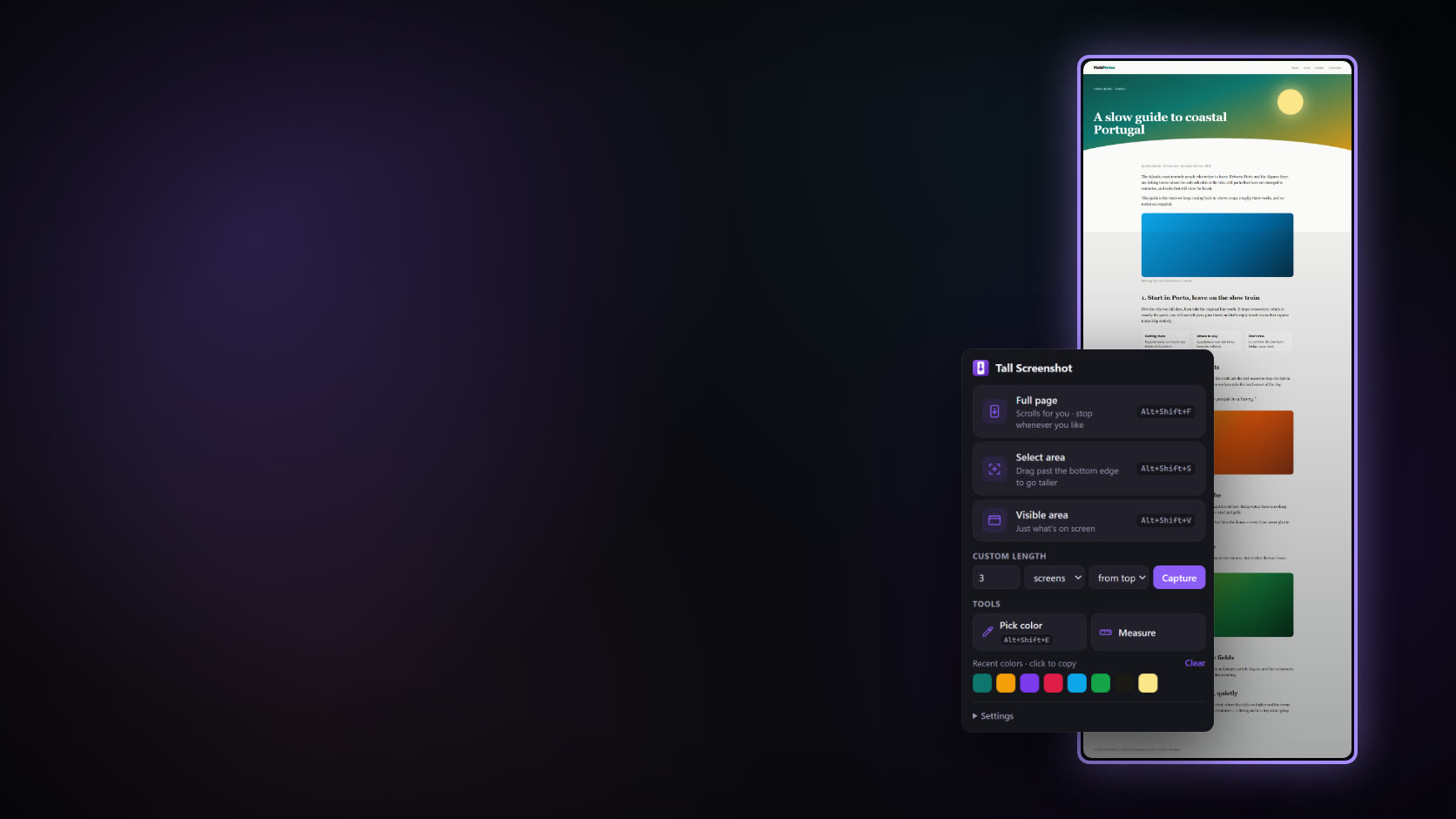
A test page with a ruler line every 250 px: every line landed on its exact pixel
It can see a tab only when you use it there
No servers, no account, no tracking
A screen shows a slice of a web page. The part you want to keep, an article, an order confirmation, a design to review, a long chat, is usually taller than the window.
Most screenshot tools give you one of two things: the visible part, or the whole page whether you wanted all of it or not. Tall Screenshot gives you both, and everything in between. It scrolls the page for you and stitches the screens into one image, and you can stop it the moment you have enough. Or drag a box, keep dragging past the bottom of the screen, and the page scrolls under it.
Everything opens in a small editor where you crop, copy or save the image. And it does two jobs I kept opening other extensions for: a colour picker with a magnifier, and a ruler that measures distances and element sizes. It's free, it works in Chrome and Edge, and your screenshots never leave your computer.
You choose
how long it is.
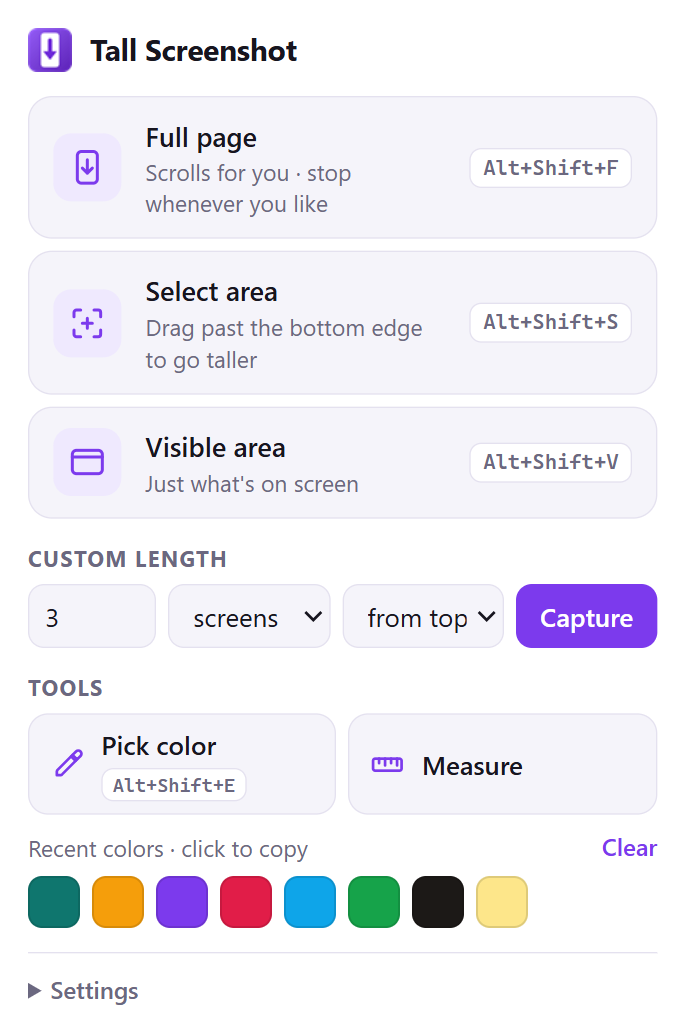
Click the toolbar button and pick one. Full page, Select area and Visible area also have keyboard shortcuts and a place in the right-click menu.
The page scrolls by itself, one screen at a time. Click Stop here & edit in the popup, press Esc, or click the toolbar button the moment you have enough. Otherwise it runs to the end of the page.
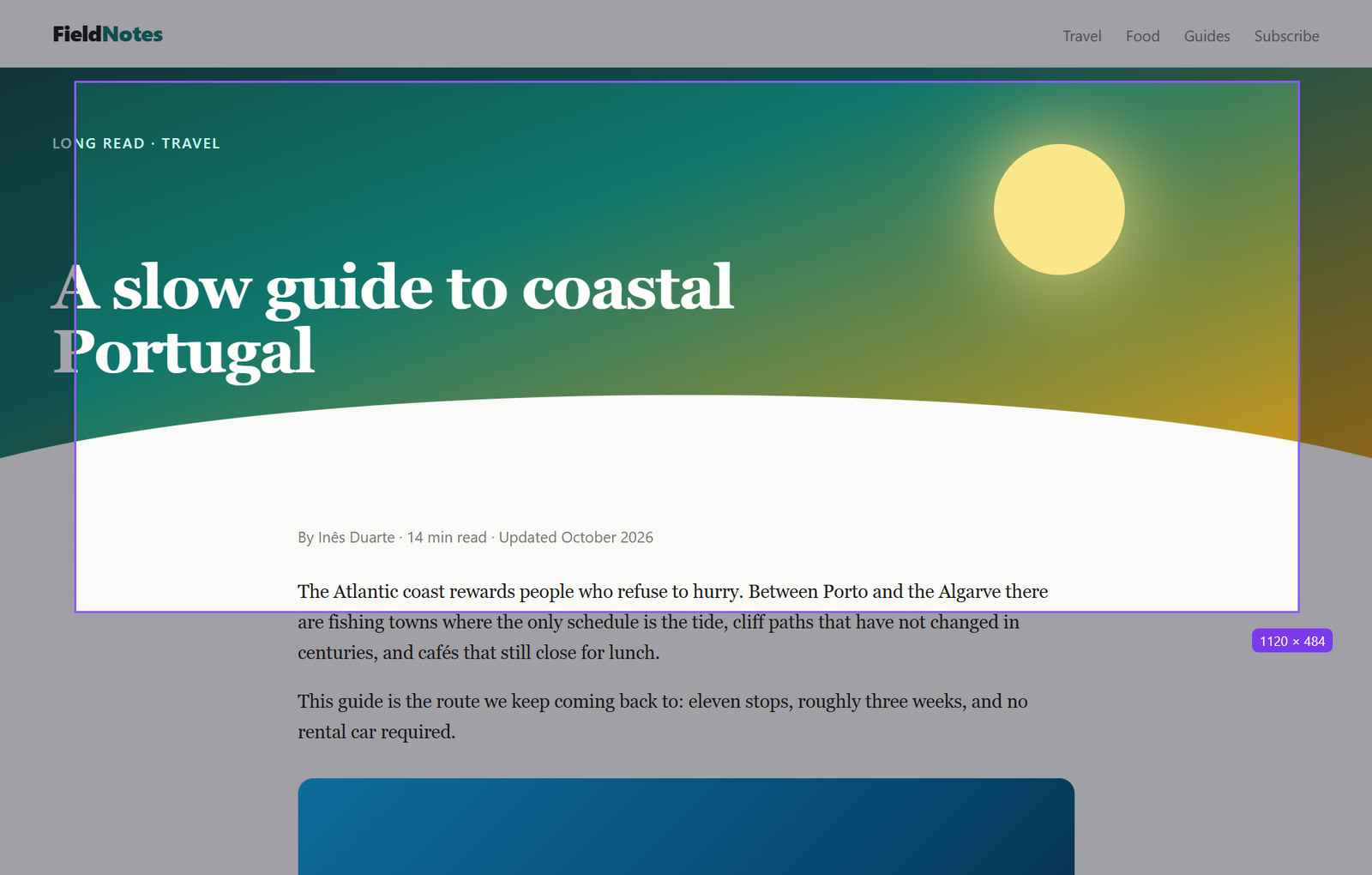
Drag a box. Drag past the bottom or top of the screen, or turn the mouse wheel, and the page scrolls under it, so the box can be as tall as you like.
Type a length in screens or pixels, from the top of the page or from where you are now. Three screens from here, or 5,000 pixels from the top.
Just what’s on screen, in a fraction of a second.
| Action | Shortcut |
|---|---|
| Full page | Alt+Shift+F |
| Select area | Alt+Shift+S |
| Visible area | Alt+Shift+V |
| Pick color | Alt+Shift+E |
| Measure | None by default. Set one at chrome://extensions/shortcuts |
Screen by screen.
No seams.
Chrome lets an extension take two screenshots a second. So Tall Screenshot scrolls one screen, waits out that limit, takes the screenshot, and notes exactly which slice of it is new. The wait isn't wasted: it's the time lazy-loaded images need to appear. A page ten screens tall takes about five seconds, and you can stop at any point.
Long pages are full of things that break a naive stitch, so it follows a few rules:
- Fixed bars appear once. A fixed header shows on the first screen only, a bar fixed to the bottom (a cookie notice, a chat button) only on the last, and a full-height sidebar on every screen. Sticky headers go back to their place in the page after the first screen.
- Apps that scroll a panel work. Mail, chat and docs apps often scroll a panel instead of the page. It finds the panel holding the long content and scrolls that.
- It puts the page back. When it's done, the page is where you left it, with nothing of the extension left behind.
- Very tall pages are scaled to fit. Browsers can't make an image much taller than 32,000 pixels, so a longer capture is saved smaller, and the editor says so. Cropping a part of it brings full resolution back.
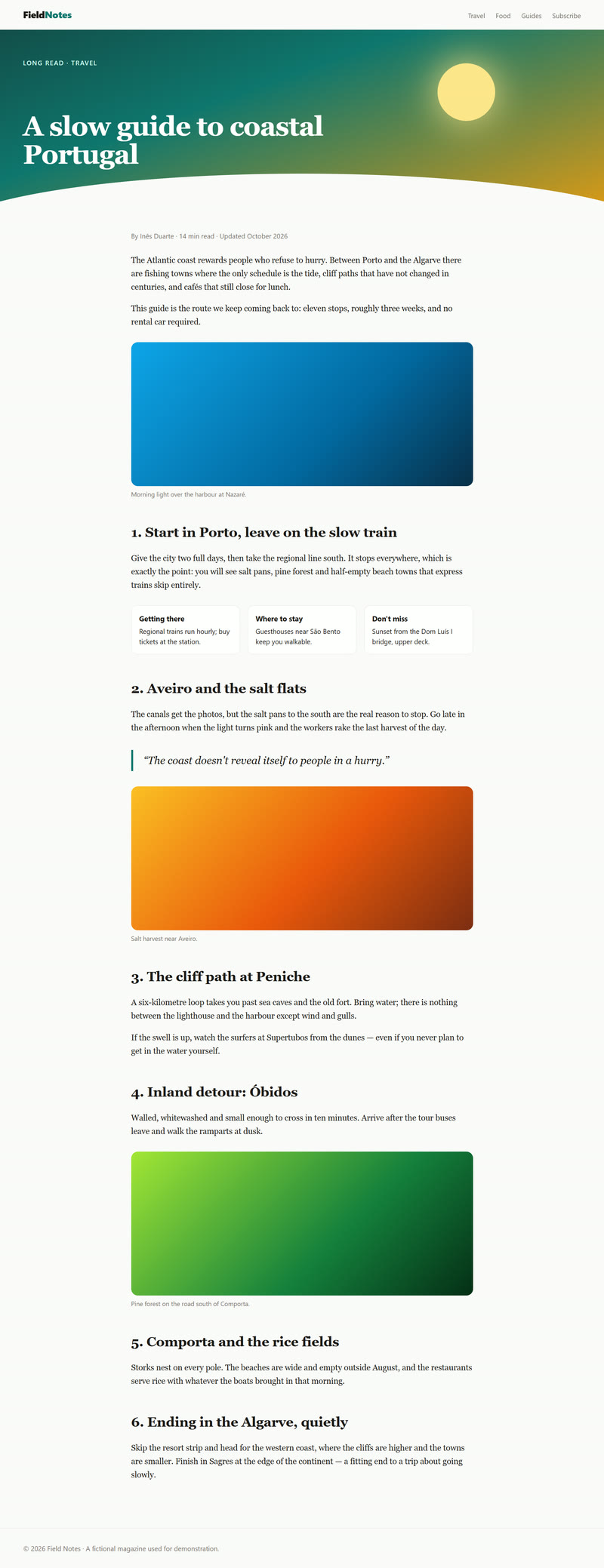
How I checked it: a 6,444-pixel test page with a ruler line every 250 pixels, stitched in 4.7 seconds; every line landed on its exact pixel in the image. The same at 125% Windows display scaling, where seams usually show. Select area, custom length, stopping early, an app-style page that scrolls a panel, and both tools passed the same checks in Chrome 155 and Microsoft Edge 155 on Windows 11.
Crop it, copy it.
Save it.
When a capture finishes, the editor opens in a new tab. Press C to crop: drag the handles, draw a new box, or type the exact X, Y, width and height. Dragging near the top or bottom of the window scrolls, so tall crops are easy. Every crop is drawn again from the original screens, so undo gives you back the full image with nothing lost.
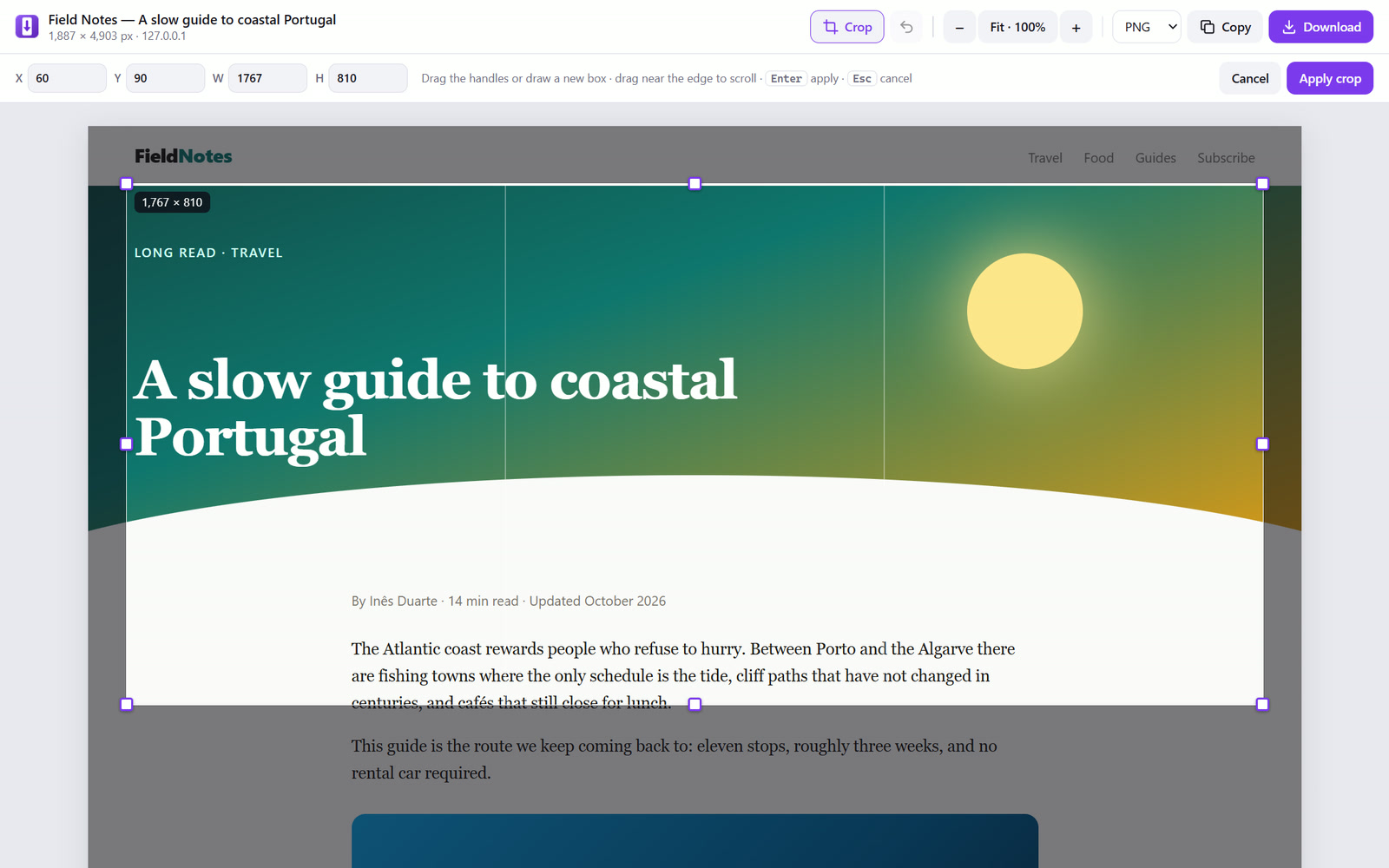
| Key | What it does |
|---|---|
| C | Crop: drag the handles, draw a new box, or type X, Y, W and H |
| Enter / Esc | Apply the crop / cancel it |
| Ctrl+Z | Undo the last crop |
| Ctrl+C | Copy the image (PNG) |
| Ctrl+S | Download as PNG, JPG or WebP |
| + / − / 0 / 1 | Zoom in, zoom out, fit, 100% |
Copy puts a PNG on the clipboard, ready to paste into a chat or a document. Download saves a PNG, a JPG or a WebP, named after the page and the time you captured it.
Pick a colour.
Measure anything.
Both tools read the pixels on your screen, so they work on images, canvases and video frames as well as ordinary page elements. Scroll while one is open and it reads the screen again. Press Esc or right-click to close it.
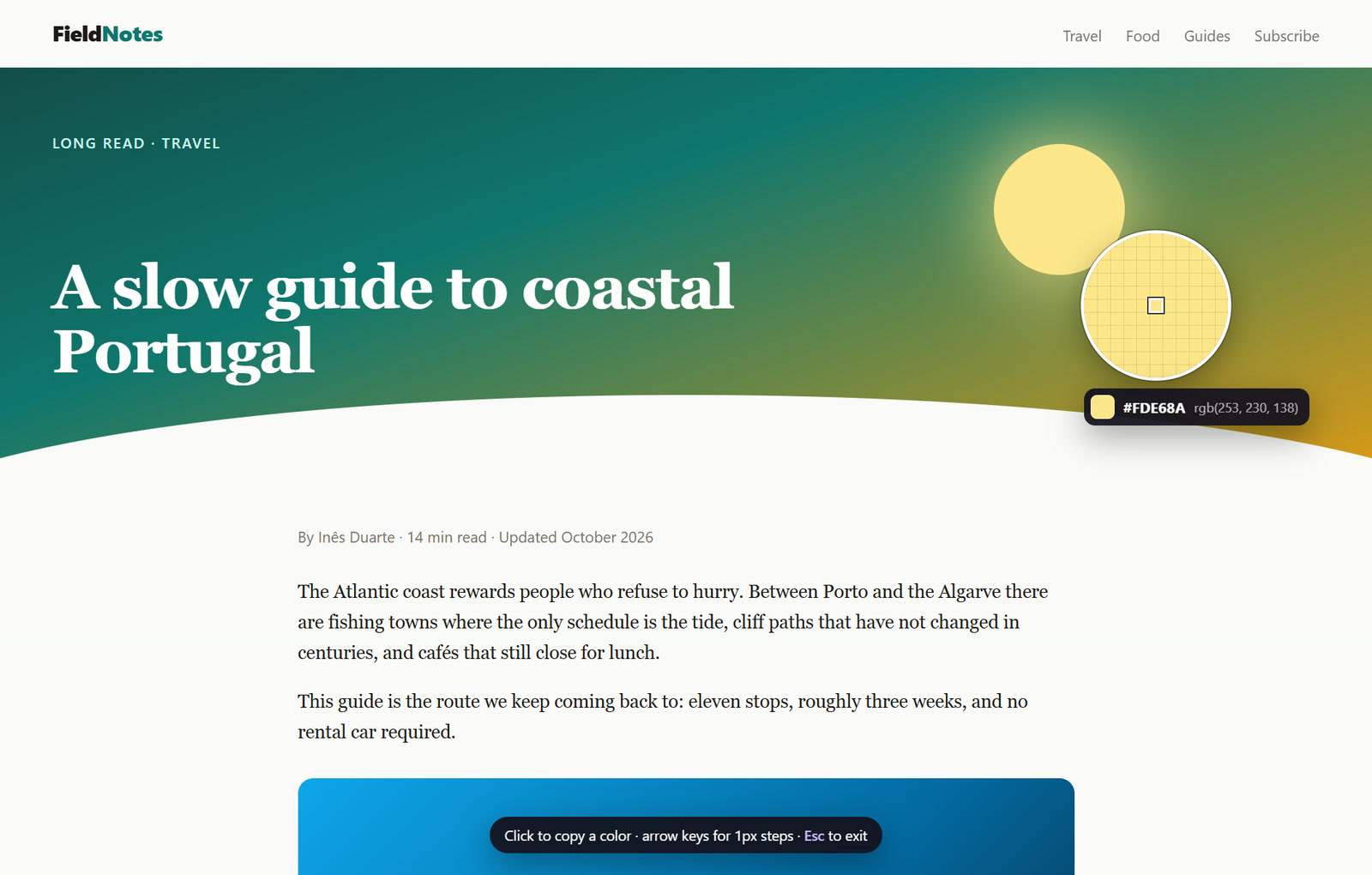
Pick color
A magnifier follows the pointer and shows the 11 × 11 pixels around it, with the colour under the centre in HEX and RGB. Click, or press Enter, to copy it; the arrow keys move one pixel at a time, ten with Shift. It copies HEX by default, or RGB or HSL if you choose that under Settings › Copy colors as. Your last 16 colours wait in the popup, one click from the clipboard.
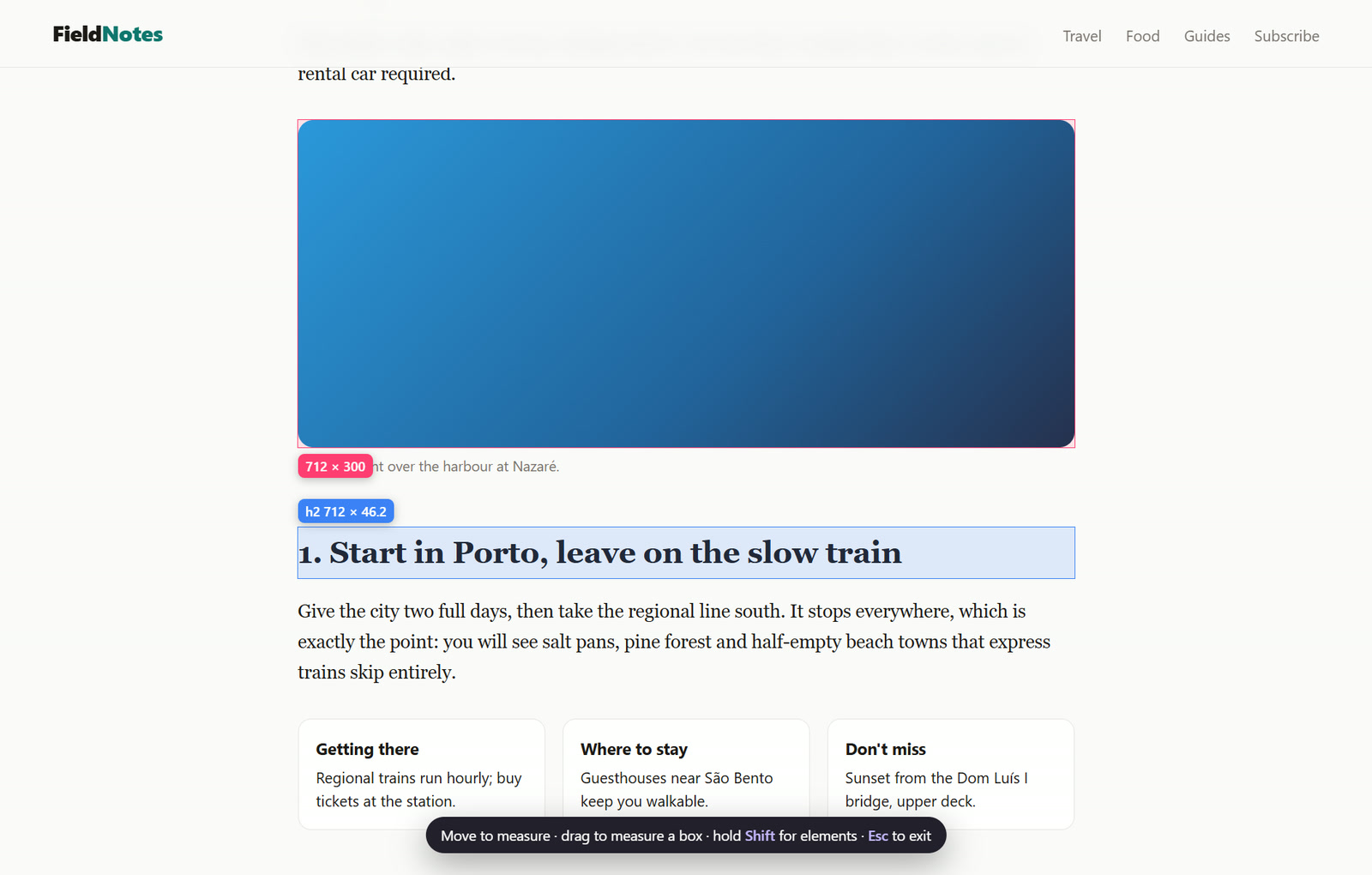
Measure
Move the pointer and lines run out to the nearest edges up, down, left and right, wherever the colour changes, with the width and height between them. Drag a box and, when you let go, it shrinks to the content inside it, so a rough box around a photo becomes the photo's exact size. Hold Shift and it shows the size of the element under the pointer instead, with its tag and class. Sizes are in CSS pixels, the units of your stylesheet, even on a zoomed or high-DPI screen.
Your pages
stay yours.
Tall Screenshot asks for no access to any website. It uses Chrome's activeTab permission: the browser lets it see the tab you're on only when you click its button, press one of its shortcuts or use its right-click menu, and only until that tab goes to another page.
| Permission | Why |
|---|---|
activeTab | Screenshots and runs its tools in the tab you use it on, only after you click its button, press one of its shortcuts or use its right-click menu. |
scripting | Runs its own bundled script in that tab, to scroll the page, draw the selection and show the colour picker and ruler. |
storage | Keeps your settings and your last 16 colours in the browser. |
contextMenus | Adds its entries to the right-click menu. |
Screenshots are stitched in your browser and kept in the extension's own storage there, only the five most recent. There's no server, no account and no analytics, and removing the extension deletes everything it kept.
Some pages are off limits.
For every extension.
Chrome protects some pages from all extensions, so none of them can scroll those pages or draw on them. Tall Screenshot does what Chrome still allows, and its popup tells you which case you're in.
| Page | What works |
|---|---|
| Ordinary websites | Everything. |
| PDFs | Visible area, select area and both tools. A PDF scrolls inside Chrome’s own viewer, which extensions can’t control, so Full page captures the visible part and says so. |
| The Chrome Web Store, chrome:// pages, the new tab page, data: pages | Visible area only. Full page, select area and custom length capture the visible part instead, and the editor says why. The tools can’t run. |
| view-source: pages and blank tabs | Nothing: Chrome blocks screenshots there too. |
- It goes at Chrome's pace. Two screenshots a second is Chrome's limit for extensions, so a long page takes a few seconds.
- Endless pages stop somewhere. On a feed that keeps loading, Full page stops at 30,000 pixels; change that under Settings, or stop it yourself.
- Not tested everywhere yet. I tested it in Chrome 155 and Microsoft Edge 155 on Windows 11. Not tested yet: Brave, Opera, Arc and other Chromium browsers, and macOS, Linux and ChromeOS.
- No Firefox version yet. Firefox runs extensions a little differently; it's on the list.
See it work.
In 87 seconds.
The launch video shows a full-page capture stopped halfway, a selection taller than the screen, the editor, the colour picker and the ruler. English captions are on by default; turn them off from the video's controls.
Free.
For Chrome and Edge.
Tall Screenshot is free. I submitted version 1.0.0 to the Chrome Web Store on 19 October 2026 and it's in review there; when it's approved, I'll link to it from here. Until then, you can install it from the ZIP. There's also a download page you can share.
Unzip it, then add it in chrome://extensions (or edge://extensions): turn on Developer mode and choose Load unpacked. The steps are below. Once the Chrome Web Store approves it, you'll be able to add it from there in one click instead.
Installing from the ZIP
- Download the ZIP above and unzip it: right-click it and choose Extract All.
- Open the extensions page: type
chrome://extensionsin Chrome's address bar, oredge://extensionsin Edge. - Turn on Developer mode, the switch at the top right (bottom left in Edge).
- Choose Load unpacked and select the folder you unzipped, the one with
manifest.jsondirectly inside it. - Pin it: click the puzzle icon next to the address bar, then the pin beside Tall Screenshot.
Installed from the ZIP, it doesn't update itself; the Chrome Web Store version will. Version 1.0.1 gives the colour picker its working shortcut (Alt+Shift+E: Chrome keeps Alt+Shift+C for itself) and tidies the popup.
SHA-256 checksum
- tall-screenshot-1.0.1.zip · 51 KB
63440f5b2526f7b4931023a9a93a7d35c2fb80e7b7f0c66ab1f2986487b1e122
Version 1.
What's next.
First, the Chrome Web Store review, so installing and updating take one click. Then a Firefox version, and testing in more browsers and on macOS and Linux.
The most useful thing you can send me is a page it captured badly, with its address: a header that repeated, a seam, a part that went missing. That's how the next version gets better than this one.
The figures on this page are real screenshots of Tall Screenshot 1.0.1 in Chrome on Windows 11, on a demo page made for this note (a fictional travel magazine). The launch video's overlays and cursor are recreations, as its caption says.