Download Tall Screenshot
for Chrome and Edge.
Screenshot a whole web page, a length you choose, or an area you drag past the edge of the screen. Crop it, copy it or save it, then pick colours and measure things on the same page. Nothing leaves your computer.
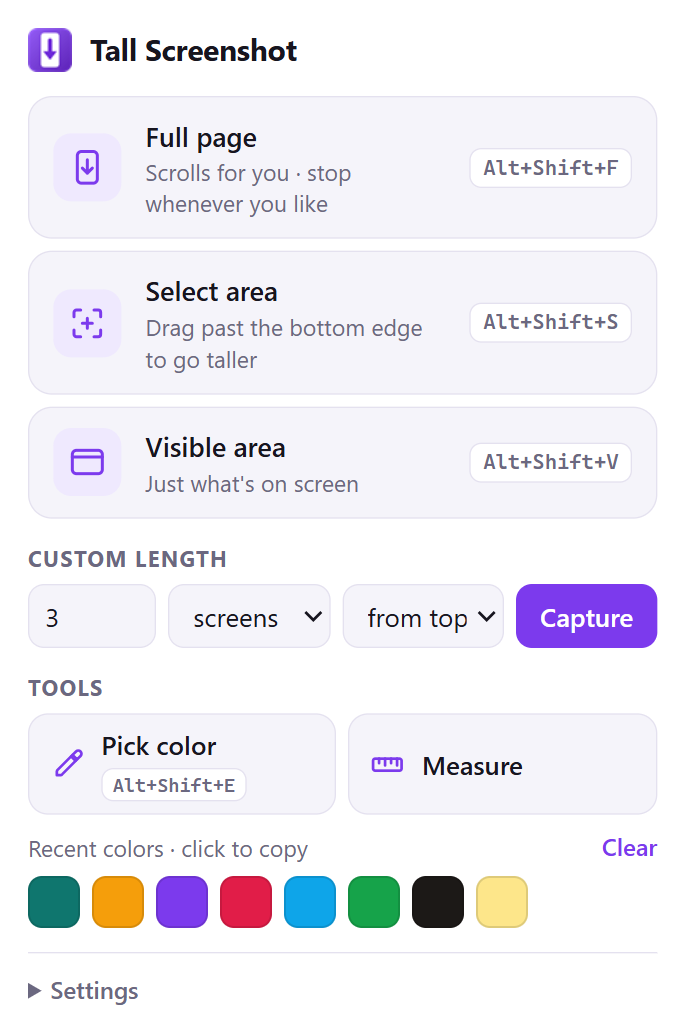
Unzip it, then add it in chrome://extensions (or edge://extensions): turn on Developer mode and choose Load unpacked. The steps are below. Once the Chrome Web Store approves it, you'll be able to add it from there in one click instead.
VERSION 1.0.1RELEASED FREECHROME WEB STORE: IN REVIEW
How to install itA test page with a ruler line every 250 px, every line on its exact pixel
It sees a tab only when you use it there
No servers, no account, no tracking
Unzip it.
Load it.
I submitted Tall Screenshot to the Chrome Web Store on 19 October 2026, and it's in review. Once it's approved, you'll be able to add it there in one click, and this page will link to it. Until then, install it from the ZIP:
- Download the ZIP above and unzip it: right-click it and choose Extract All.
- Open the extensions page: type
chrome://extensionsin Chrome's address bar, oredge://extensionsin Edge. - Turn on Developer mode, the switch at the top right (bottom left in Edge).
- Choose Load unpacked and select the folder you unzipped, the one with
manifest.jsondirectly inside it. - Pin it: click the puzzle icon next to the address bar, then the pin beside Tall Screenshot.
Installed this way, it doesn't update itself; the Chrome Web Store version will. To remove it, click Remove on its card in the extensions page; that deletes its saved screenshots and settings too.
SHA-256 checksum
- tall-screenshot-1.0.1.zip · 51 KB
63440f5b2526f7b4931023a9a93a7d35c2fb80e7b7f0c66ab1f2986487b1e122
The whole page.
Or just enough.
- 01
Full page, stop any time
It scrolls the page for you and stitches every screen into one image. Stop the moment you have enough, with the popup, Esc or the toolbar button.
- 02
Select an area of any height
Drag a box, and keep dragging past the bottom of the screen: the page scrolls under it.
- 03
Custom length
Three screens, or 5,000 pixels: from the top of the page or from where you are.
- 04
A crop editor
Crop with handles or exact numbers, undo with no quality lost, then copy a PNG or save a PNG, JPG or WebP.
- 05
A colour picker
A magnifier shows every pixel. Click to copy HEX, RGB or HSL; your last 16 colours stay in the popup.
- 06
A ruler
Distances to the nearest edges, boxes that snap to the content inside them, and any element’s size with Shift.
| Action | Shortcut |
|---|---|
| Full page | Alt+Shift+F |
| Select area | Alt+Shift+S |
| Visible area | Alt+Shift+V |
| Pick color | Alt+Shift+E |
| Measure | None by default. Set one at chrome://extensions/shortcuts |
What it
runs on.
- Browsers
- Google Chrome 116 or later, or Microsoft Edge. Tested in Chrome 155 and Microsoft Edge 155 on Windows 11.
- Not tested yet
- Brave, Opera, Arc and other Chromium browsers, and macOS, Linux and ChromeOS. They use the same extension system, so they may well work.
- Firefox
- Not supported yet.
- Disk and internet
- A 51 KB download. It works offline and never connects to anything itself.
Chrome protects some pages from every extension. On the Chrome Web Store and chrome:// pages, Tall Screenshot can capture only what's on screen, and on view-source: pages nothing at all; the popup tells you which case you're in.
Your pages
stay yours.
It asks for no access to any website. Chrome lets it see the tab you're on only when you use it there. Screenshots are stitched in your browser and kept there, only the five most recent; there's no server, no account and no analytics.
activeTab- Screenshots and runs its tools in the tab you use it on, only after you click its button, press one of its shortcuts or use its right-click menu.
scripting- Runs its own bundled script in that tab, to scroll the page, draw the selection and show the colour picker and ruler.
storage- Keeps your settings and your last 16 colours in the browser.
contextMenus- Adds its entries to the right-click menu.
Curious how
it stitches?
I wrote about how it scrolls and stitches a page, the rules that keep headers from repeating, the editor, the colour picker and the ruler, and the pages no extension can touch. There's an 87-second launch video, too.